First visit?
Find what you’re looking for quickly by using the pullout navigation menu.
Dismiss

Media Innovation Services Guide

The SHSU Online Media Innovation team brings educational content to life. Let us help engage students with compelling video content, animations, or imagery throughout your online course. You can use information from this document to familiarize yourself with Media Innovation’s capabilities in enhancing online courses with multimedia content.

Offering a wide range of services, our team can scale its efforts to meet the needs of creators who wish to utilize our skills and resources. These include the areas of video production, lecture capture, captioning services, graphic design services, and others.

How Can We Help?

When creating your courses, you may find yourself in need of support with a wide array of instructional media and services. SHSU Online Media Innovation is here to help you meet your course development needs!

I Need To…


Video Services

Lecture Booth

Point of Contact: Jessie Hobson

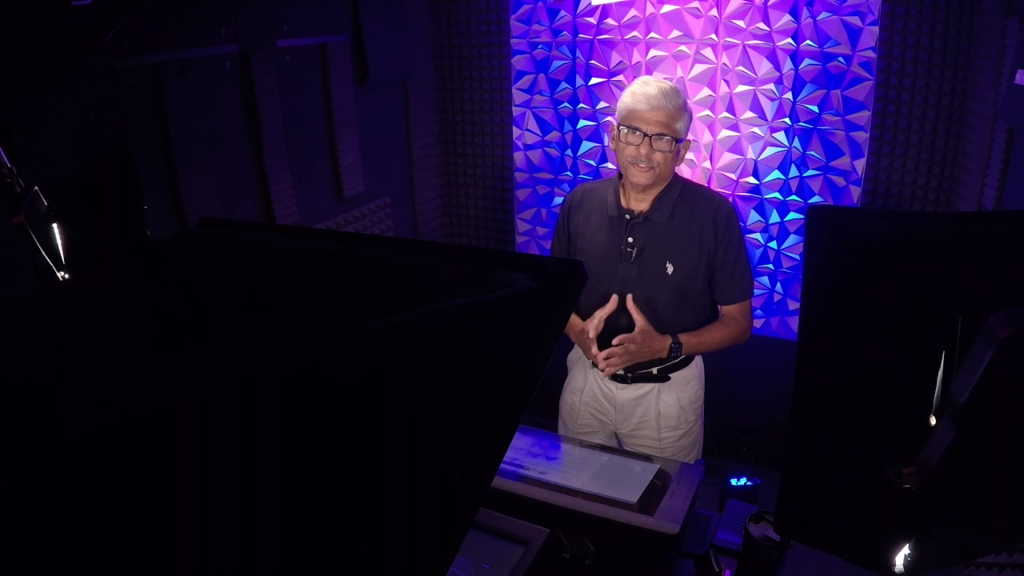
Located in our offices at University Plaza Suite 102, the sound-isolated lecture booth provides all the tools you’ll need for well-produced lecture videos. In this studio, we specialize in rapid video creation, supporting your preparation and collaboration to make creating engaging lecture videos a smooth, low-stress process.
Recording Options

Consider which type of lecture video best suits your needs:

  • Screen Capture and Voice Over: An instructor clicks through their lecture or shares their screen, using voice-over to add commentary and additional information for deeper context.
  • Screen Capture with Camera: Our most utilized type of lecture. An editor jumps back and forth between a camera recording the instructor and the captured screen to create a more personal experience.
  • Multimedia Lecture: Additional visual elements are added in editing to create more engaging content. While multimedia lectures require more planning and preparation, they offer numerous benefits to your students

Lecture Capture Tips

Here are a few tips you might keep in mind that could help to make the best of your lecture recording.

  • Keep lecture videos between six and nine minutes in length
  • Focus each video on a manageable amount of content to avoid overwhelming the audience
  • Start with an explicit agenda for students, noting the importance and scope of the topic
  • Call out the introduction, transitions, and conclusion
  • Use a normal speaking pace as if students are present
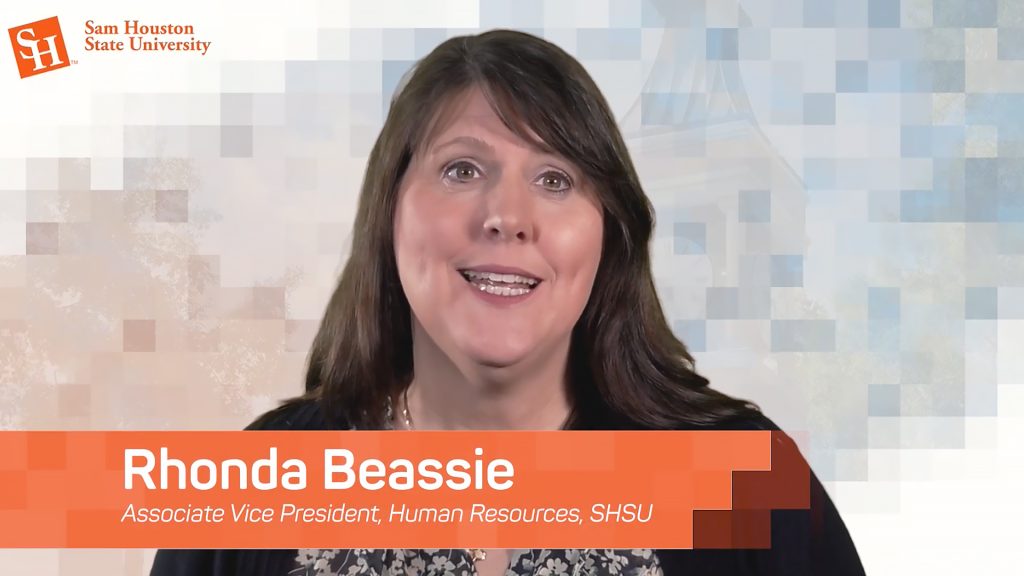
A professional video recording of an SHSU employee. She is smiling against a stylized, pixelated background with an orange lower-third graphic identifying her name and title.
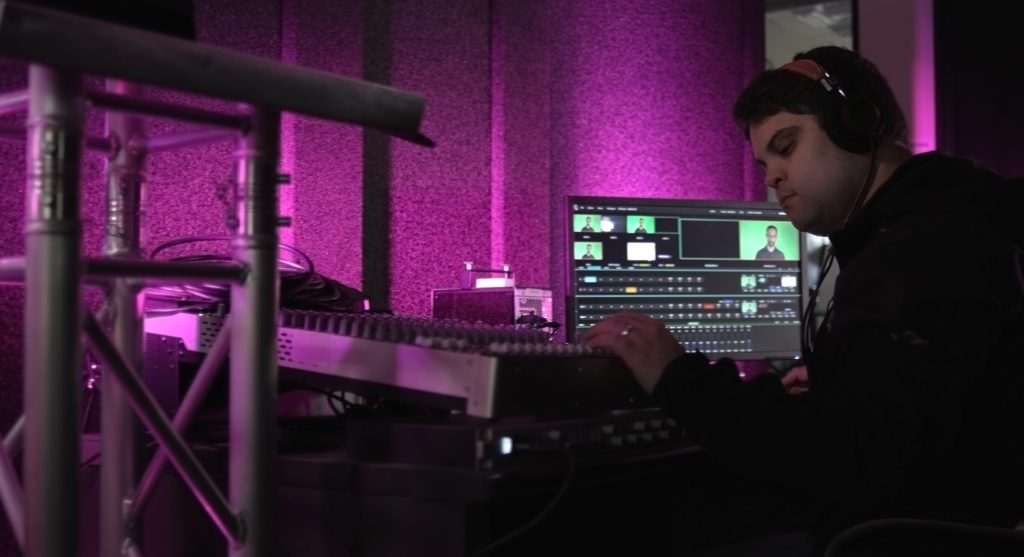
A media production specialist wearing headphones operates a digital audio mixing console and video switcher. The background monitor shows a multi-view production interface with a subject filmed against a green screen.

Angrove Podcast Studio

Point of Contact: Jessie Hobson

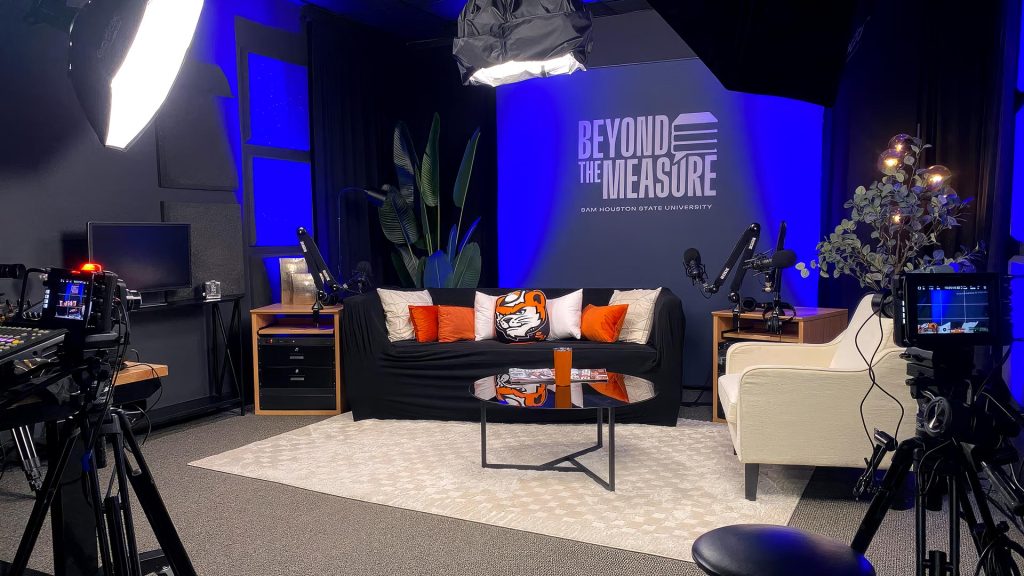
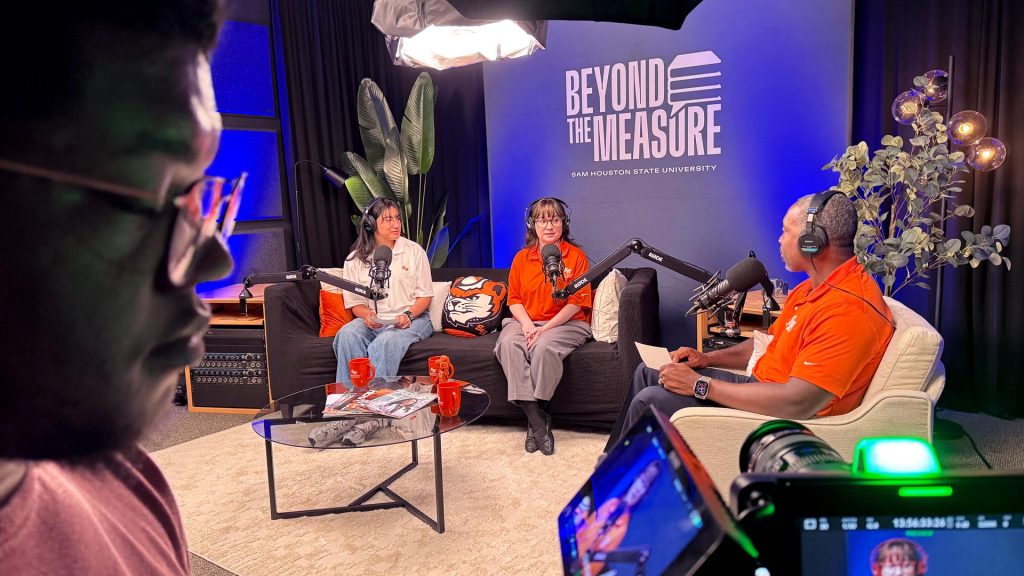
Our studio is fully equipped for professional, two-to-three-person podcasts, and can be decorated to match your theme. We handle all the technical details, from equipment and recording to editing and delivery, so you can focus entirely on your content and guests.

Podcasting Tips

Here are a few tips you might keep in mind that could help to make the best of your podcast recording.

  • Outline your vision: Come prepared with your topic, overarching goals, key discussion points, and any guests. On recording day, your only job is to have a clear, on-topic conversation.
  • Keep it conversational: While bringing a reference card with your key points is perfectly fine, use it as a quick reminder rather than reading word-for-word to ensure your podcast feels natural and engaging.
  • Define the look: Having an idea of your vibe, branding, visuals, or physical props you’d like to use? While the studio already looks great, we’re happy to meet with you ahead of your session to arrange set customizations and take any personal props for your podcast so they are ready for the big day.

Full-Production Studio

Point of Contact: Nat Conner

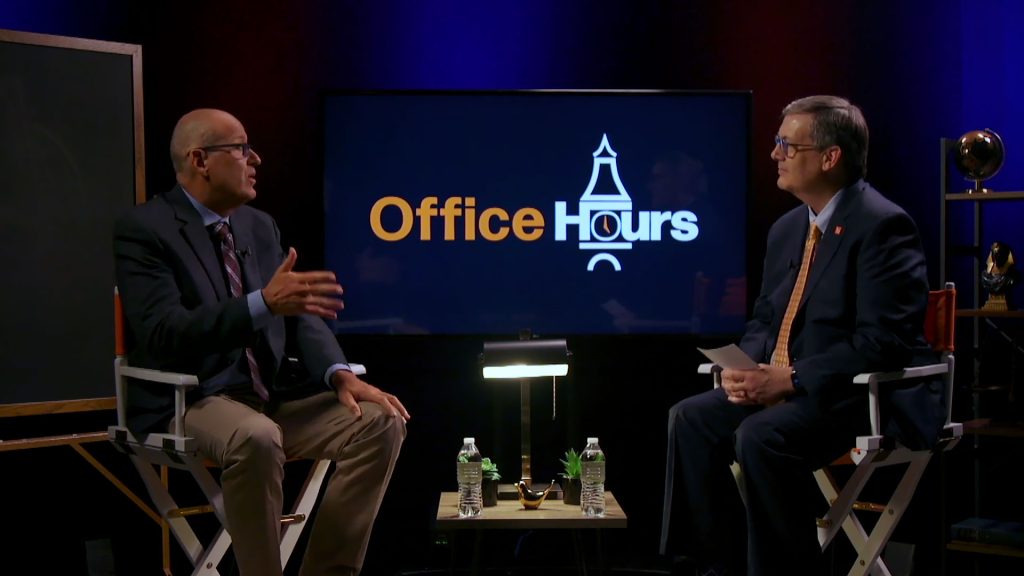
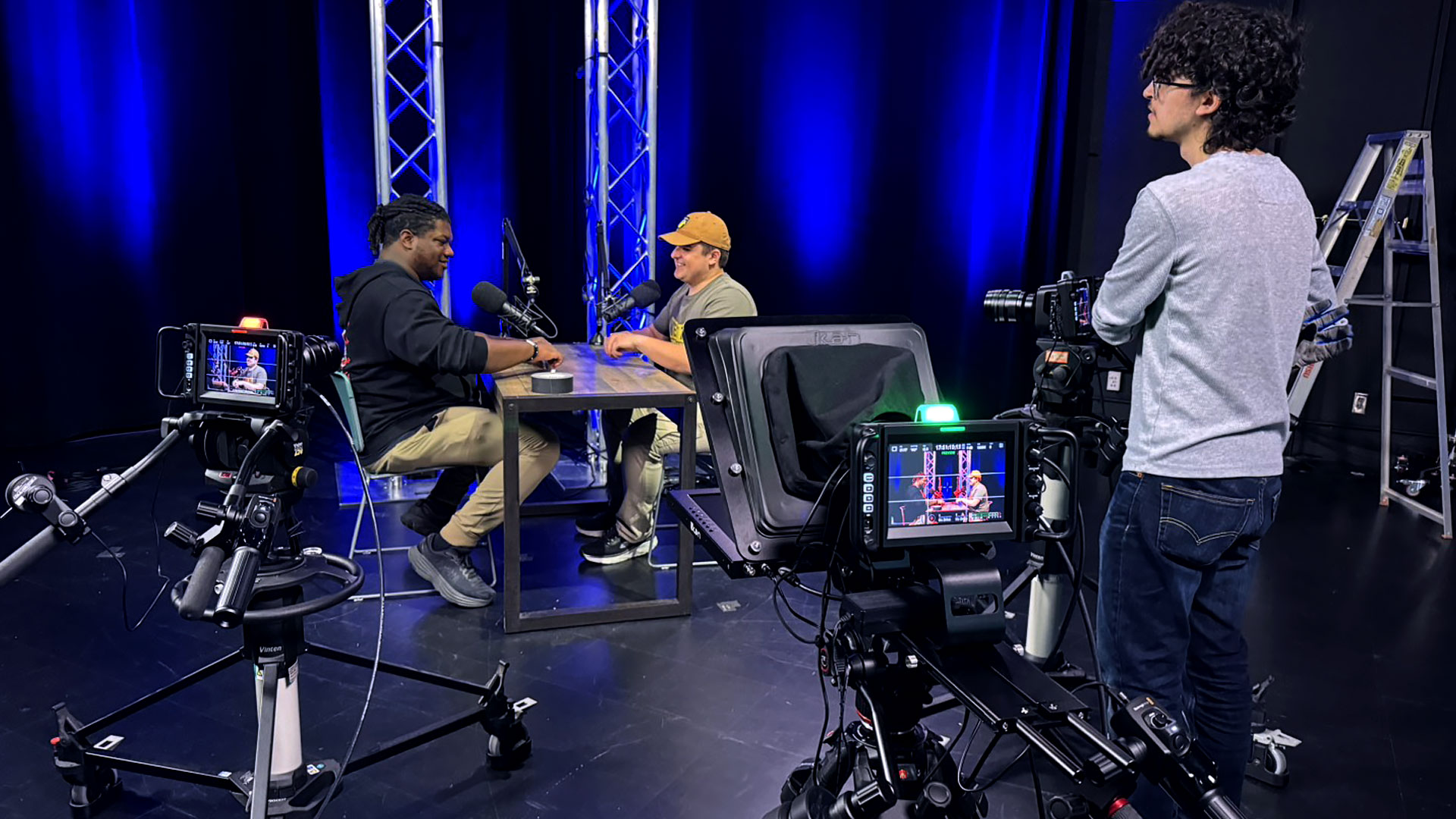
This studio is a dedicated, multi-camera space with a changeable set, built specifically for recording premium educational content and live broadcasts. Content created here takes a deeper, more involved approach than standard recordings. SHSU Online partners with faculty through a complete filmmaking process, covering everything from pre-production planning to final post-production enhancements like motion graphics and music.
Phases of Production

  1. Scripting: We collaborate with you to develop or refine your script, outline the visual direction, and establish the overall tone for your project. Take a look at an example script.
  2. Scheduling: Once you reach out, we work with you to set up a plan and send you a detailed schedule.
  3. Production: On shoot day, our crew meets you on location. We’re fully equipped and prepped to capture your content efficiently, guiding you through the process.
  4. Post-production: After filming, our team enhances your footage with motion graphics, music, and other digital assets. We’ll share drafts with you, get your feedback, and send the final version for your approval.
A television interview set for a program titled "Office Hours." Two men in professional attire sit in director’s chairs facing each other in conversation. A large screen between them displays the show’s logo, which incorporates a university clock tower icon.
A wide shot of a multi-camera video production in a studio with blue backlighting. Two individuals sit at a desk with microphones, while a camera operator in the foreground monitors the recording through a professional viewfinder.
An interview taking place in a studio designed to look like a cozy library or study, featuring a brick wall, bookshelves, and leather armchairs. Two men sit opposite each other across a coffee table that holds a small globe and water bottles.
A close-up shot of five Telly Award statuettes lined up against a dark background. The sleek, winged figures are highly reflective, and the "The Telly Awards" logo is visible on the stands behind them.

In-Class Recordings

Point of Contact: Jessie Hobson

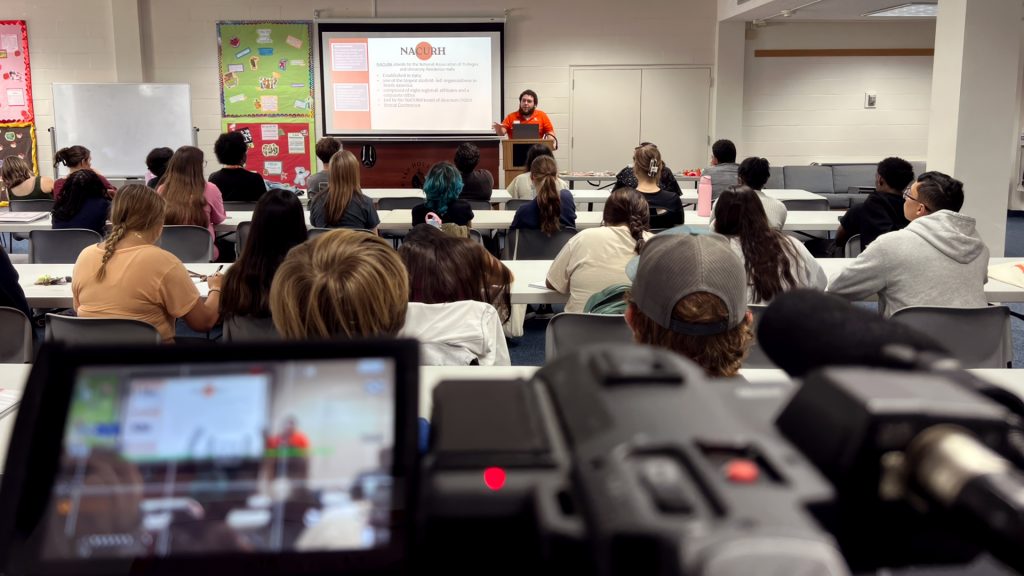
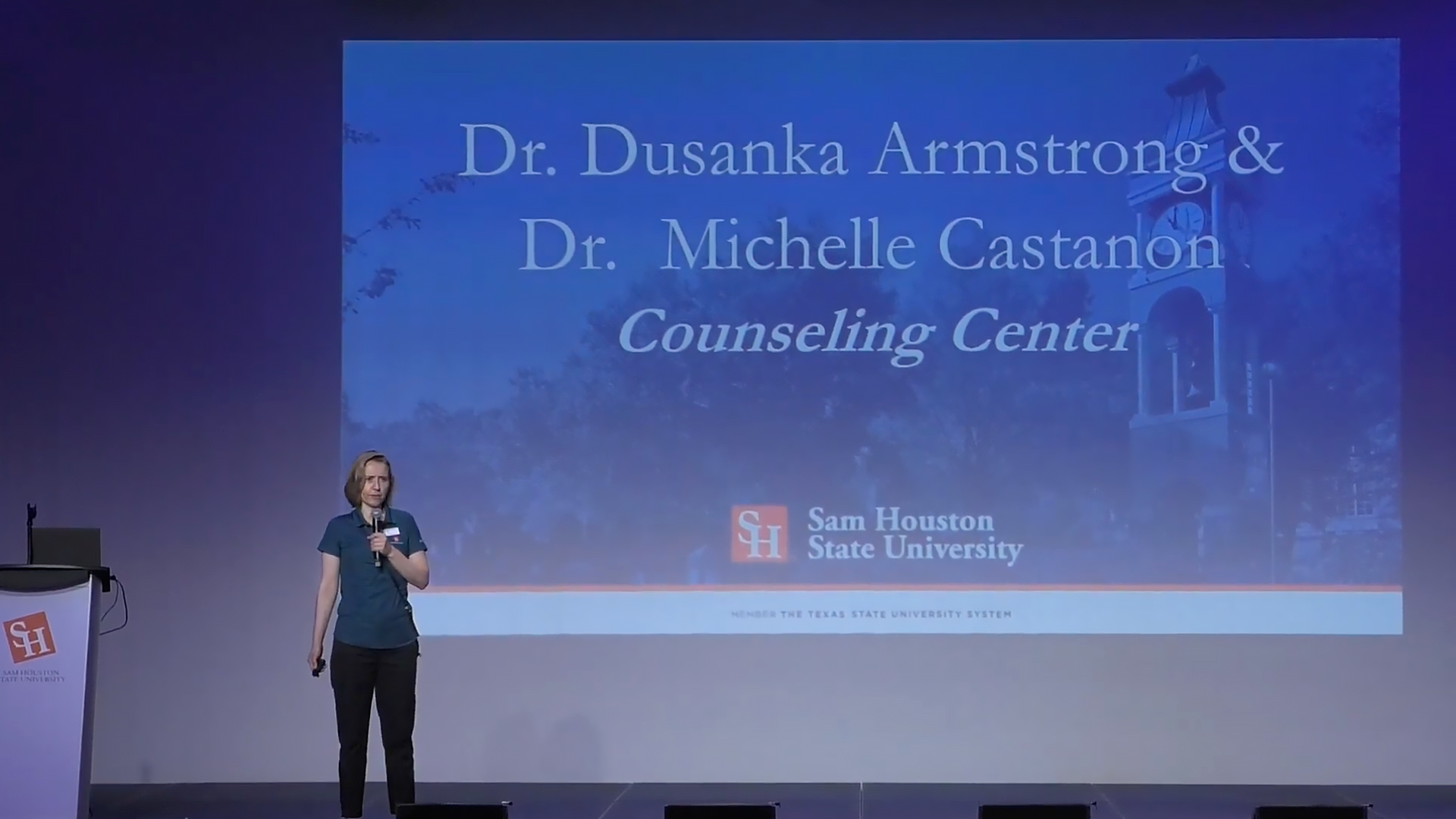
We can assist you in class recordings as well. A lot of the components mentioned in the lecture capture section above still apply, and like most productions, preproduction is still key. The more information you can provide leading up to the event, the better we can assist you.
Planning your In-Class Recording

Answers to these questions early can save a lot of time and help us deliver a better project in a timely fashion.

  • Do you have needs outside a studio setting?
  • Do you have a guest lecturer that you need recorded for your course?
  • When and where is the recording event?
  • How many speakers will be present for the recording?
  • How soon do you need the project delivered?

See more about best practices for recordings.

A presenter stands on a stage next to a podium, addressing an audience. Behind them, a large projector screen displays a title slide with a blue-toned image of the university clock tower.
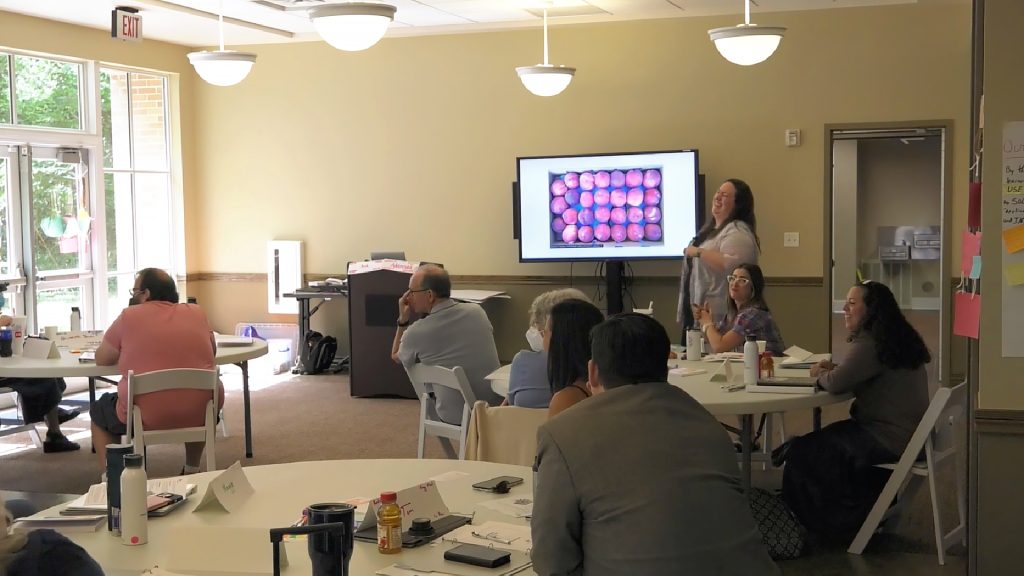
A professional workshop takes place in a brightly lit common room with circular tables. A woman stands at the front of the room leading a discussion, while a large monitor behind her displays an image of produce in a crate.
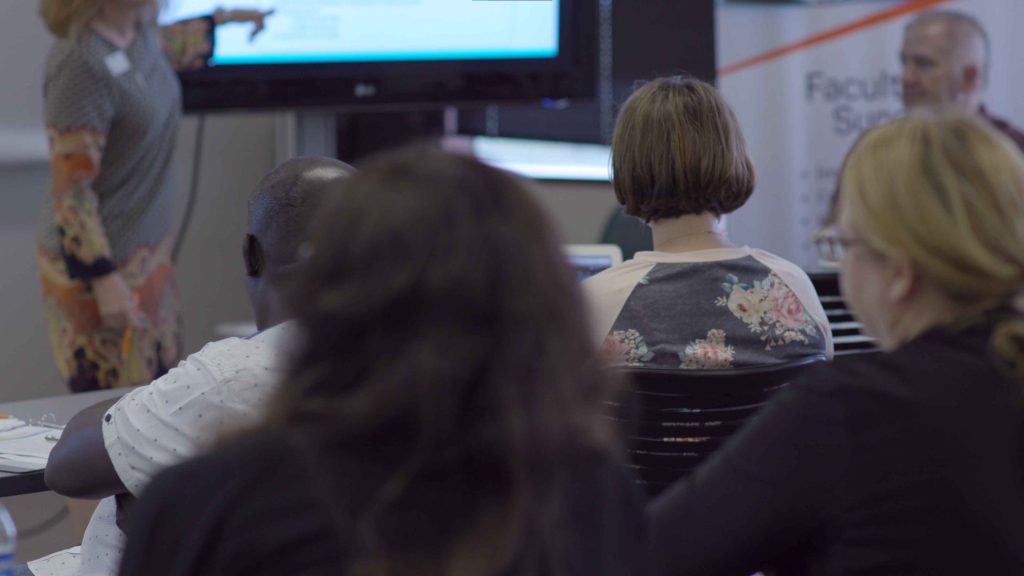
A group of educators sits at tables in a classroom setting, viewed from behind. They are facing the front of the room where a large television monitor displays a digital presentation.

Field Production

Point of Contact: Nat Conner

Filming on location is a great way to add visual interest to your project. While shooting outside the studio introduces unique variables that require more upfront planning, we provide full field production services to handle the logistics and bring your vision to life.
Info about Field Productions

Because on-location variables are unpredictable, field productions require extended timelines across the board. Thorough early planning is essential for an efficient shoot, and substantial editing time is necessary to craft the final footage into a compelling narrative.

Location Scouting

Prior to recording day

  • If no location has been determined for filming, our team scouts for a location based on the client’s desired specifications.

Travel

Day of recording

  • Keep in mind that traveling to a location takes time and preparation.
  • For productions on campus, we generally leave our office 30-45 minutes prior to arrival time.

Setup

Day of recording

  • Setting up on location generally takes between one and two hours. This varies given the location. Please allocate time for us to set up before the on-camera talent arrives.
  • If the client already has an aesthetic and relevant location, our setup time can be drastically reduced.

B-Roll

Day of recording

  • When applicable, we record (on location) supplemental footage that is incorporated into projects during the editing process.
  • We want to produce the best content possible for each client. Understanding each shot takes time to prepare, requires patience, and helps set expectations for recording days.
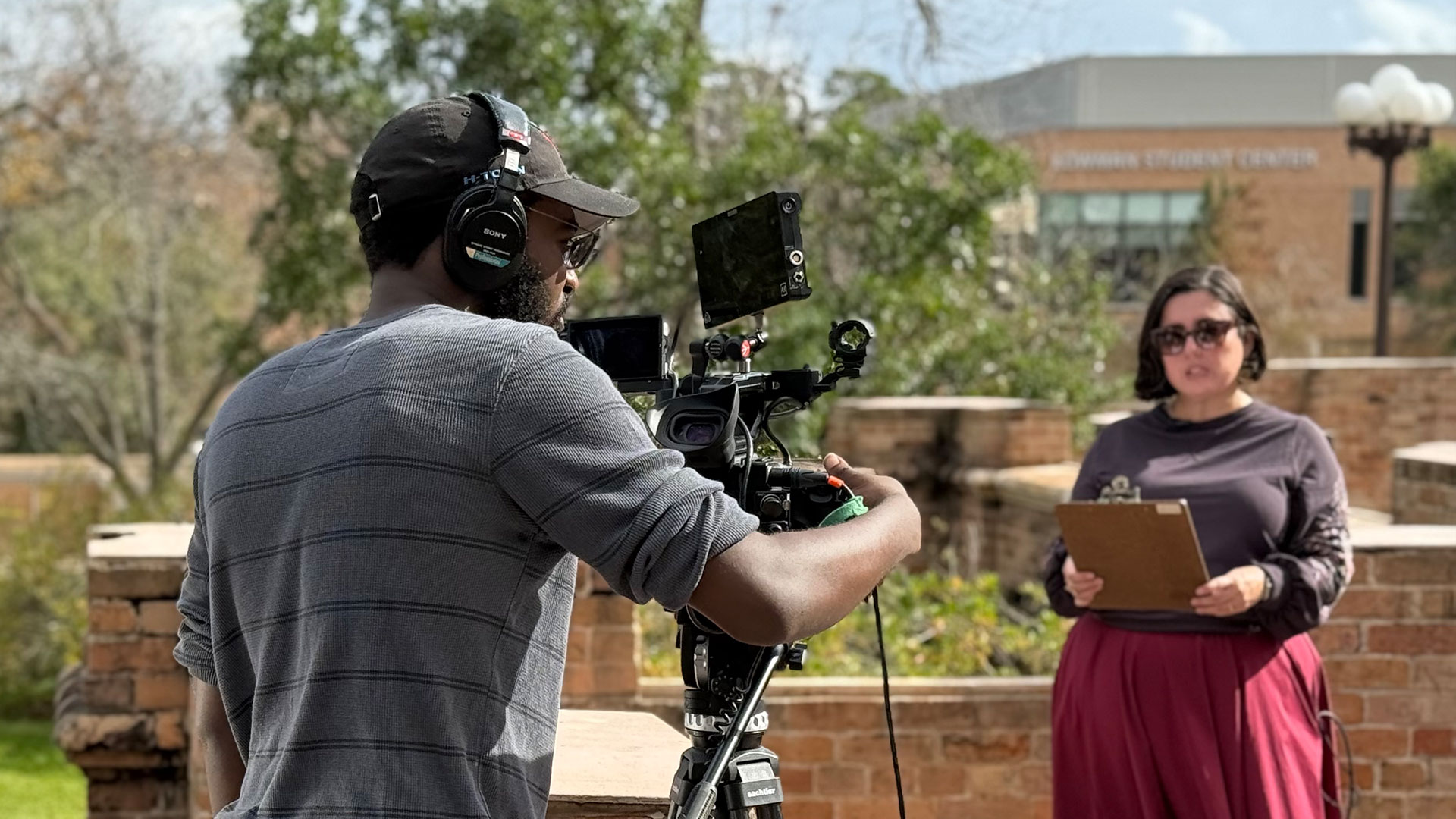
A behind-the-scenes view of an outdoor film production. A camera operator with headphones and a baseball cap focuses a professional cinema camera on a subject standing in front of a brick building on a university campus.
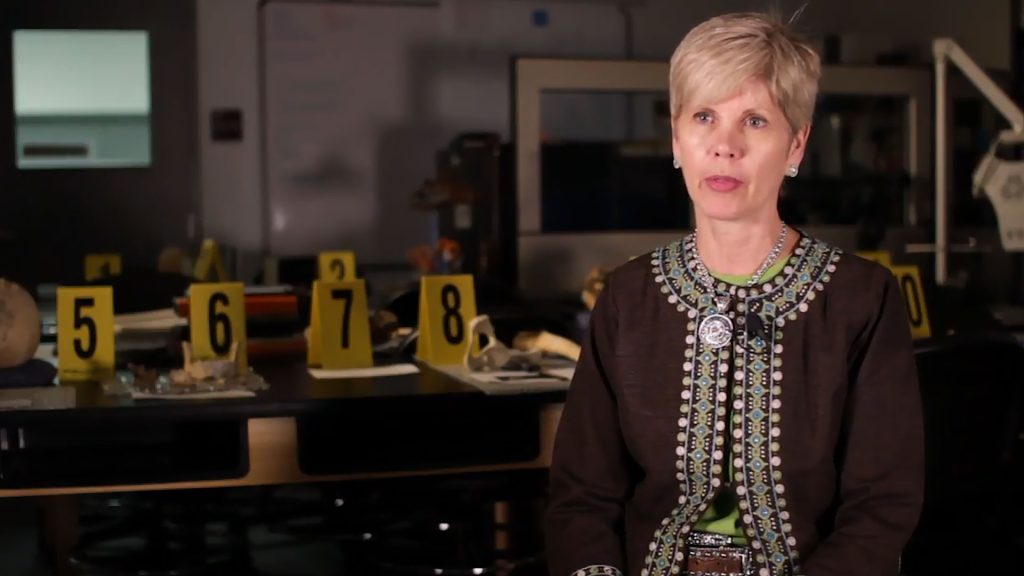
A professor speaks during an interview in a forensic science laboratory. In the background, numbered yellow evidence markers and anatomical models are visible on lab benches under dim lighting.

Video Best Practices

Point of Contact: Nat Conner

We have collaborated with faculty for years to produce thousands of pieces of instructional media, and we are eager to share that experience with you. Explore the sections below for our top video creation tips and best practices.

Planning your video

Script Development

Whether in the studio or the field, a strong script is essential for focusing your instructional content and keeping our production team perfectly aligned with your expert vision. When drafting that script, aim for brevity. While videos can serve as a direct replacement for an in-person lecture, they are also an excellent way to summarize key concepts. In fact, many SHSU professors find that breaking longer lectures into smaller, focused videos of six minutes or less is the most effective strategy for maintaining student engagement.

Visual Aids

With your outline complete, it is time to build your slides. Keep your presentation easy to understand by using bulleted keywords that you can expand on verbally. To keep students engaged, break up the text by incorporating a variety of relevant photos, graphs, and charts.

Preparing to be recorded

Tips to Prepare

  • Practice your script out loud and swap out any difficult words.
  • Plan to use natural hand and head gestures to look more conversational on camera.
  • Ensure your presentation files are saved to a flash drive or accessible network drive.

Wardrobe Suggestions

  • Wear solid colors or large patterns, and choose tops with a defined collar or jacket for easy microphone placement.
  • Bring an alternate wardrobe option just in case.
  • Avoid noisy or visually distracting jewelry.
  • Shooting at University Plaza? Dress lightly for the warm studio lights.
  • Shooting in Studio B? Avoid solid black clothing so you stand out from the set.

Using a Teleprompter

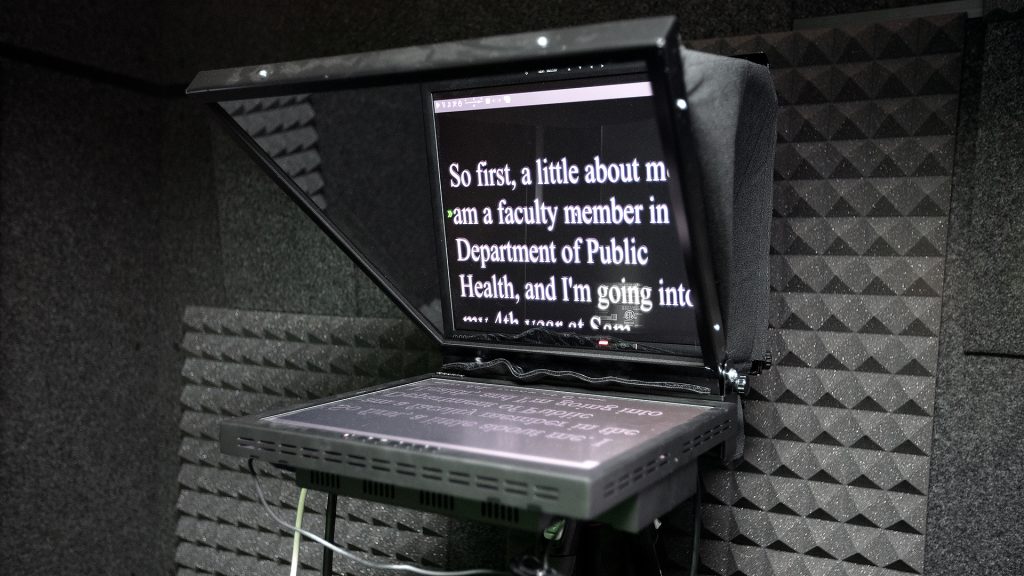
You will have access to a teleprompter when recording your lectures with us. To get the most out of this tool, we highly recommend providing a word-for-word script. Whether you are presenting on camera or narrating over slides, a full script allows you to maintain direct eye contact with the lens rather than checking your notes, resulting in a much more engaging video for your students.

Post-session process

Our Process

While pre-production varies by project, our post-production process is consistent. After filming, our team edits your footage and will reach out for your input as needed. For larger projects, we will share video drafts for your review. Once approved, we deliver the final video via Kaltura or YouTube, based on the preference you indicated earlier in the process.

Timeline

Turnaround times range from 1–3 days for simple lecture captures to two weeks or more for full studio and field productions. Your final delivery timeline depends on:

  • The length of the script
  • The efficiency of the recording session
  • The extent of edits and revisions required
  • Our team’s current workload
  • Your project deadlines
A close-up demonstrating proper microphone placement. A person's hands are shown clipping a small black lavalier microphone onto the placket of a gray polo shirt, which features the SHSU Online logo.
A professional teleprompter setup in a recording studio. The screen displays a script for a faculty member, with acoustic foam panels visible on the walls in the background.
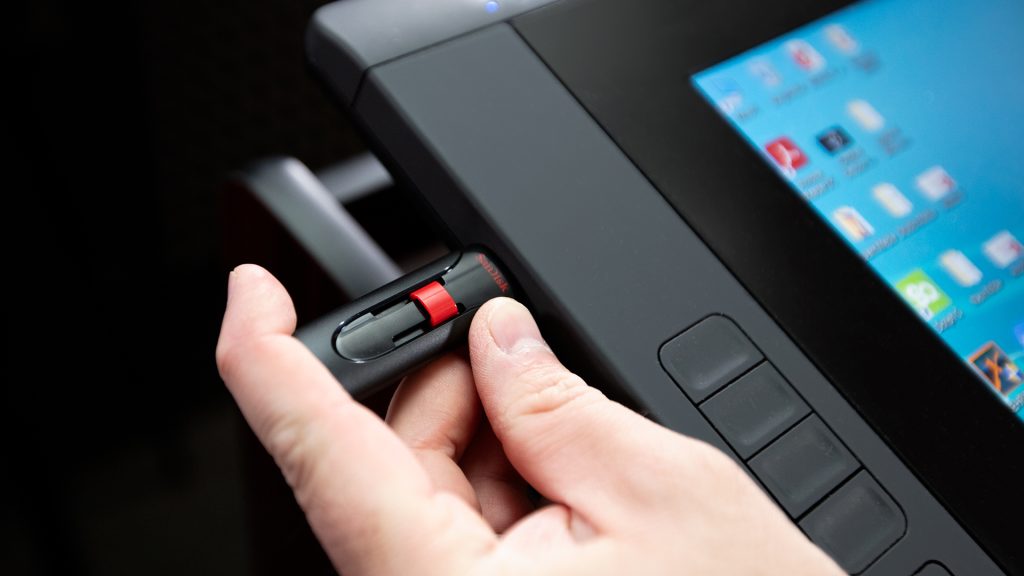
A close-up of a hand inserting a black and red USB flash drive into the side port of a large digital touch-screen monitor, illustrating a common step in setting up presentation media.
A close-up of a person's arm and hand as they use a stylus on a digital tablet. The person is wearing several large, metallic, and beaded bracelets, illustrating how excessive jewelry can be a visual or auditory distraction during a recording.

Captioning

Kaltura REACH

Point of Contact: Jessie Hobson

To improve accessibility in our online courses, all Blackboard users now have access to Kaltura REACH. This new feature seamlessly and automatically generates captions for every video uploaded to your Kaltura My Media page, requiring no additional steps or input.

A screenshot of a video showing captions at the bottom of the screen.
A hearing-impaired student watching a presentation with captions.

Design Services

Graphic Design Requests

Point of Contact: Dane Classen

We supply faculty with high-quality graphic resources and self-service SharePoint templates to enhance the online teaching and learning experience. Delivery timelines range from one week for standard banners and templates, to several weeks for animations and design consulting, with schedules for complex projects determined during the planning phase.

Types of graphics we create

Graphics Options

Course Content

  • Pre-designed syllabi
  • Infographics, graphs and charts
  • Redesign of low resolution or “out of date” graphic files

Branded Media

  • Templates and presentation media
  • Zoom backgrounds
  • Word and PowerPoint templates

Digital and Print Design

  • Social media ads
  • Informational flyers
  • Posters

Animations

  • Motion graphics
  • Motion typography
  • Visual effects

Layout Design

  • Editorials
  • Typography

Branding Info & Design Tips

SHSU Branding

Typefaces

Both SHSU Online’s primary typefaces of Panton and Roboto and the broader SHSU primary typefaces of GT America and GT Flexa are unavailable by default on most computers. To ensure your text displays correctly, use the more widely available Arial typeface in the Microsoft Word or PowerPoint programs.

Colors

  • SHSU ORANGE
  • PMS
  • PMS 021C
  • HEX
  • #F56423
  • RGB
  • (245,100,35)
  • CMYK
  • (0,72,90,0)
  • SHSU WHITE


  • HEX
  • #FFFFFF
  • RGB
  • (255,255,255)
  • CMYK
  • (0,0,0,0)
  • SHSU JADE
  • PMS
  • PMS 316
  • HEX
  • #004853
  • RGB
  • (0,72,83)
  • CMYK
  • (100,10,29,68)
  • SHSU STONE
  • PMS
  • PMS 4253
  • HEX
  • #BAA596
  • RGB
  • (186,165,150)
  • CMYK
  • (20,28,37,5)
  • SHSU DENIM
  • PMS
  • PMS 4137
  • HEX
  • #465D7B
  • RGB
  • (70,93,123)
  • CMYK
  • (74,49,22,27)
  • SHSU LIME
  • PMS
  • PMS 2299
  • HEX
  • #A3D237
  • RGB
  • (163,210,55)
  • CMYK
  • (38,0,94,0)
  • SHSU SAND
  • PMS
  • PMS 468 50%
  • HEX
  • #DDCDAE
  • RGB
  • (221,205,174)
  • CMYK
  • (8,14,33,0)
  • SHSU SKY
  • PMS
  • PMS 7457
  • HEX
  • #BBDDF6
  • RGB
  • (187,221,246)
  • CMYK
  • (25,0,0,0)

Course Imagery

Blackboard Ultra’s responsive design makes it easier than ever to use imagery effectively. Well-chosen visuals prevent courses from feeling empty, break up heavy text, and keep students engaged.

  • Try including charts, graphics directly related to your readings, and videos to add deeper context.
  • Keep images around 1200 pixels maximum in any direction to balance crisp detail with fast loading times.
  • Avoid visuals that don’t contribute to the subject matter, word clouds, and cliché stock photos.
  • Do not use text in course banners since it will be cut off when displayed on many devices.
A view of two social media advertisements for SHSU.
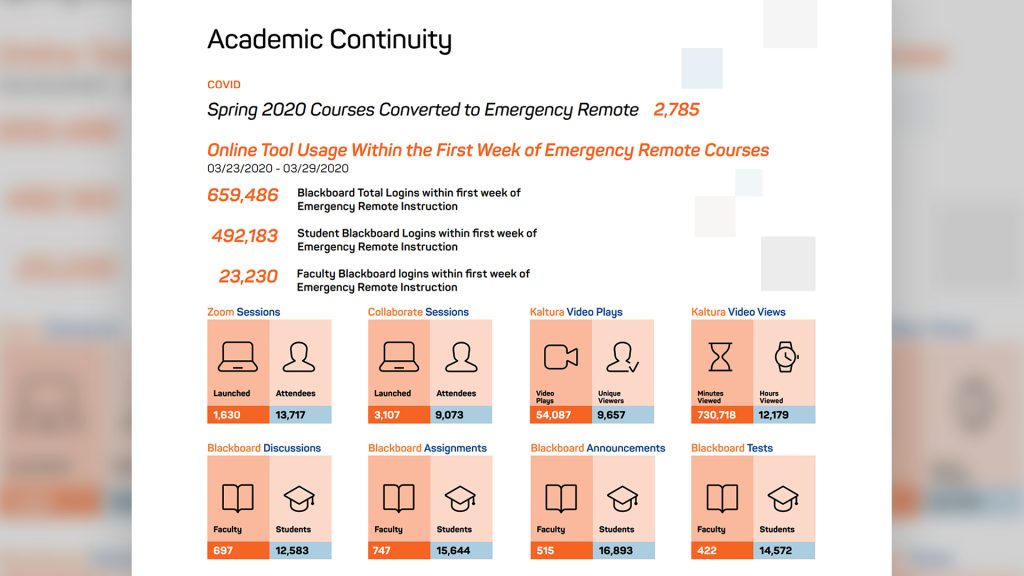
An image showing an infographic focusing on academic continuity.
A screenshot of a visually exciting video transition that makes use of bold typography
A screenshot of a stylized animation depicting a worker in a dangerous factory control room.

Self Service

Kaltura

Point of Contact: Nat Conner

Kaltura is SHSU Online’s streaming video platform. It works similarly to other video platforms like YouTube, but is used exclusively for Sam Houston faculty, staff, and students. Kaltura is very flexible and can interpret and play many file types in different browser environments. There are many reasons to use Kaltura over other services when uploading videos you have created for your course.

Creating a Library

Most instructors use a mix of videos they self-produce and videos that SHSU Online helps them create. If you use SHSU Online’s lecture capture or video production services, you will receive and place the video in your course through Kaltura. Managing your videos is easier when they are all in the same place, so we also recommend uploading any self-produced videos to Kaltura.

We Can Help

Our team has direct access to videos hosted on Kaltura and is ready to assist with complex editing or redesigning graphic elements. We are happy to help with any editing or postproduction, even for self-produced videos.
Services connected to Kaltura

Blackboard

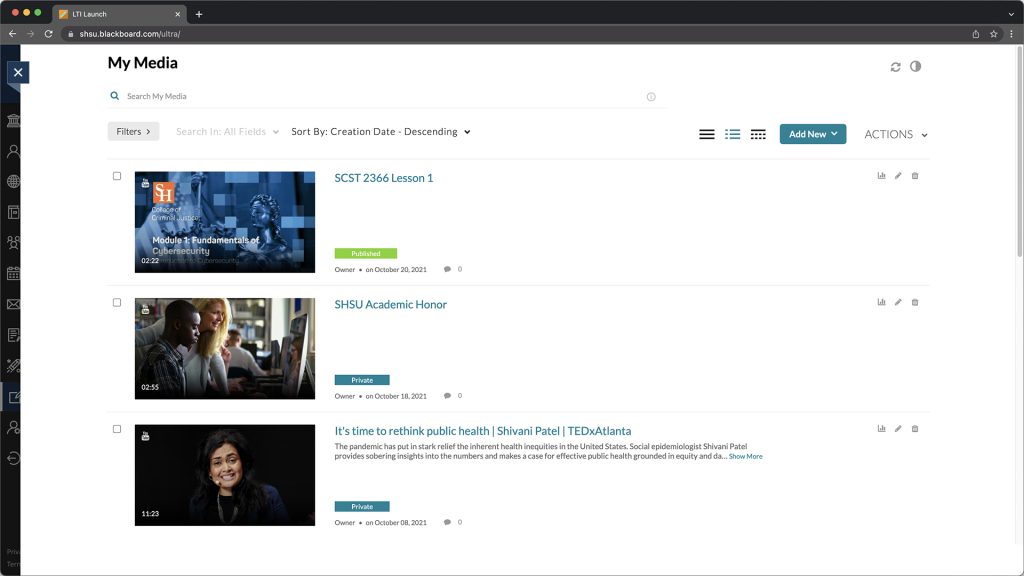
Blackboard interfaces with Kaltura directly within the “My Media” link under the “Tools” section of the top-level navigation. You will find several self-service tools there that enable you to do things like adjust video names and descriptions, use a basic video editor, upload video thumbnails, and self-manage deletion of recordings.

Captioning

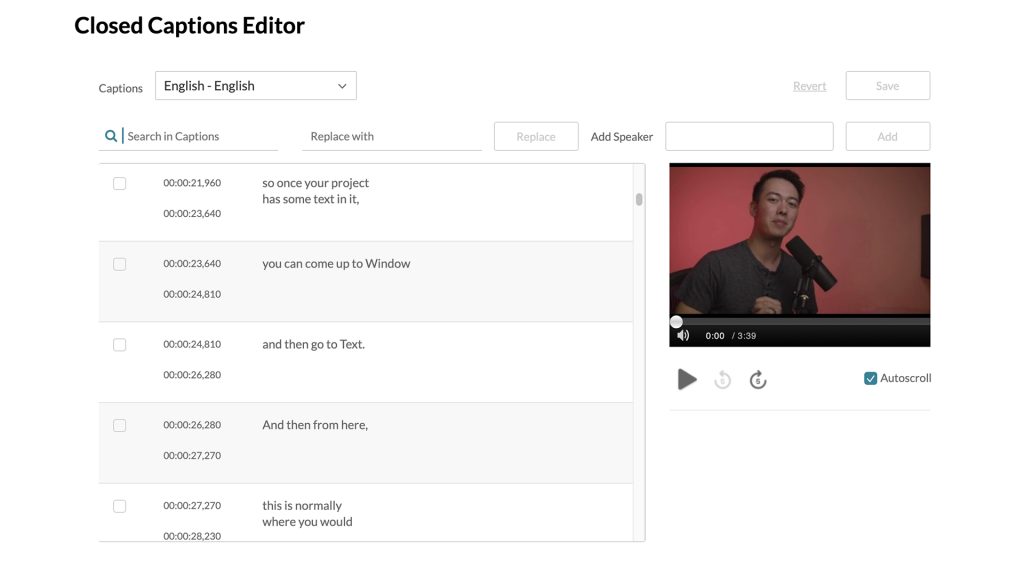
We can provide direct pop-up captioning support for videos hosted through Kaltura. While videos hosted on other non-SHSU services (like YouTube) can still be captioned we can only provide captions as a transcript file.

Zoom

Any Zoom meetings that a user has chosen to cloud-record are automatically available in Kaltura for SHSU users. Zoom also provides automatic captioning that is applied to these videos.

Kaltura Capture

Kaltura also offers Kaltura Capture, a standalone screen recording tool, which can automatically upload recordings to Kaltura.

Help with using Kaltura

View and Manage Recordings in My Media

  1. Select the “Tools” option from the sidebar of Blackboard.
  2. Select the “Kaltura My Media” option.
  3. From here you can add, remove, and edit videos in your My Media library.

Placing Kaltura Media in Course (Ultra)

  1. Use the insert content option in the top right of the text editor window and select “Content Market.”
  2. Select “Kaltura Mashup” and choose the “Embed” option beside your video from the “My Media.”
  3. Name your video in the popup box and click “Insert.”
  4. The video is now accessible in your course.

Placing Kaltura Media in Course (Ultra)

  1. Click the Build Content dropdown menu.
  2. Under “Mashups”, select “Kaltura Media.”
  3. Click the “Select” button for the desired video.
  4. Title your video, add any additional information in the text box and select the corresponding options in the “Options” section.
  5. Click “Submit.”
  6. The video is now accessible in your course.
A screenshot of a user's "My Media" collection within blackboard.
A screenshot of a closed captions editor for a video within blackboard.

Tools For Designers

Point of Contact: Maxwell Giddens

To elevate your online instructional content, the Media Innovation team has created a custom web-based application called the Online Course Styling Tool. It enables users to seamlessly apply consistent, attractive visual stylings that add instructive context and visual interest to their course materials.

Text Content Styling

While Blackboard Ultra provides basic text formatting, it often lacks the deep customization needed to present course content as effectively as a structured textbook. To bridge this gap, the Media Innovation team uses the Online Course Styling Tool to bypass these default limitations and apply advanced, highly organized, and readable textbook-level stylings to your materials.

  • Outgoing Links – Button-like styling for links that take a student to content outside of Blackboard
  • Key Points – A titled list of key information, sometimes including a subtitle
  • Content Highlights – Outlined boxes that can contain important information, quotes, or questions
  • Section Headings – Headings that break lecture documents into digestable sections
  • Next Steps – Boxes with distinct styling that lay out what to do once a lecture is completed
  • Basic Image Cropping – Crop images to predetermined sizes that work well within Blackboard
  • Full-width Video Embeds – Embedded videos that fit the full width of a blackboard document

If you need help while using the Online Course Styling Tool, you can find helpful tips and text explanations for each section at the top of the web page.
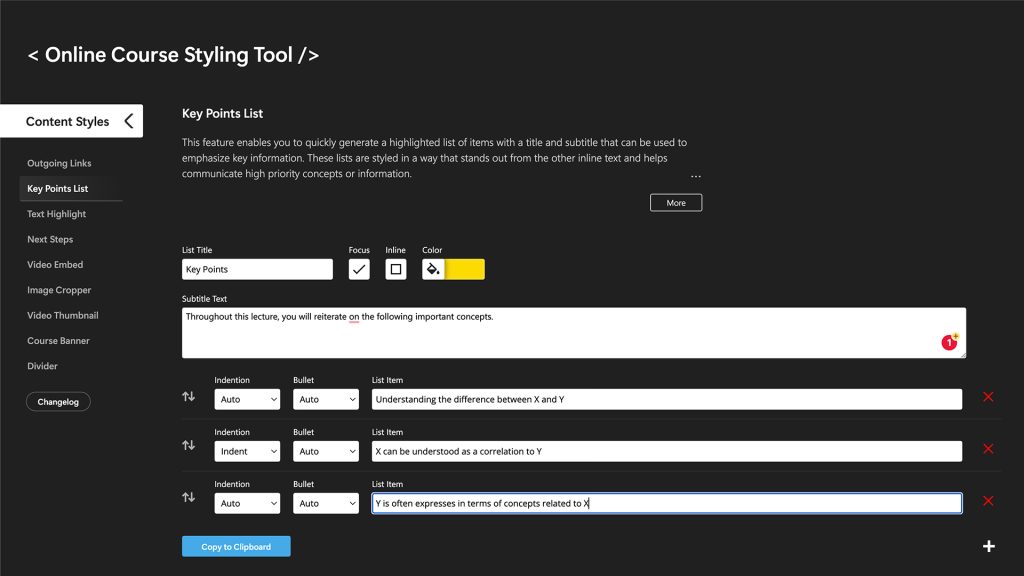
A screenshot of the home page of the Online Course Styling Tool
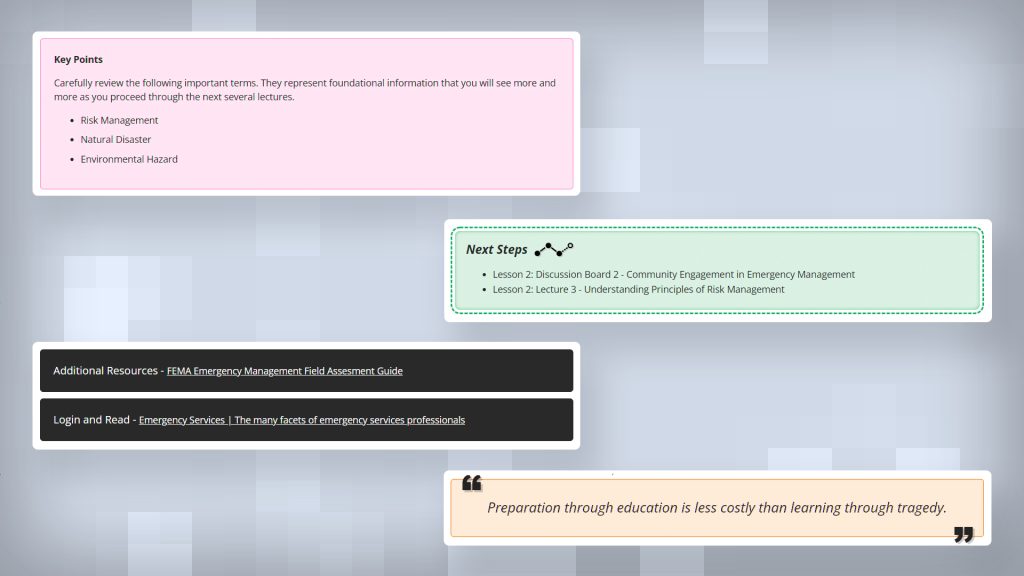
A display of several unique visual stylings for course content that were produced with the Online Course Styling Tool

Course Banners

To visually identify your course, you can use the Online Course Styling Tool to create custom banners. These feature SHSU Online’s signature “pixel” styling and color overlays, helping your course stand out in the selection menu while establishing a cohesive visual identity for your materials.

If you are unable to find an appropriate option from the available selection of images, you may now upload an image from your computer to temporarily use in the tool during your current session.
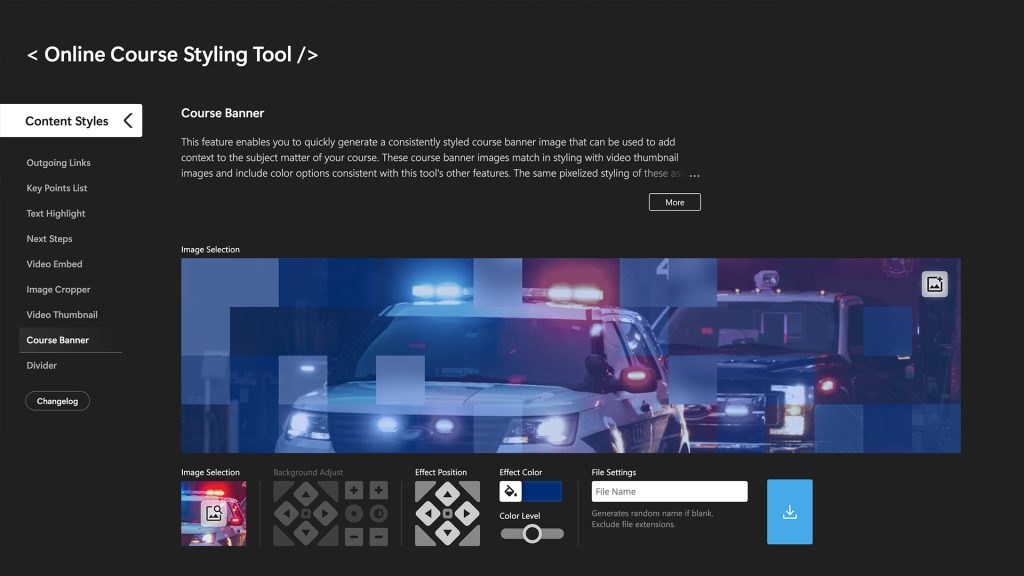

A screenshot of the course banner creation feature of the Online Course Styling Tool
A display of several unique course banners that were produced with the Online Course Styling Tool. Each featuring a stylized pixelation effect

Video Thumbnails

The Online Course Styling Tool features a thumbnail creator to quickly generate cohesive “poster images” for your instructional videos. This ensures your thumbnails perfectly match your course banners and text stylings for a unified visual identity.

Applying thumbnails to your videos is a straightforward process that can be done in just a few steps.

  1. Go to the “Tools” section of the left-hand navigation in Blackboard and choose “Kaltura My Media” from the menu.
  2. Find the video to which you want to add a thumbnail and click the pencil icon on the far right of the video list item. (If you have a large library, you can use the search bar at the top of the page to locate specific videos.)
  3. On the “Edit Video” screen, go to the “Thumbnails” tab located below the video and select “Upload Thumbnail” to choose your thumbnail image file.
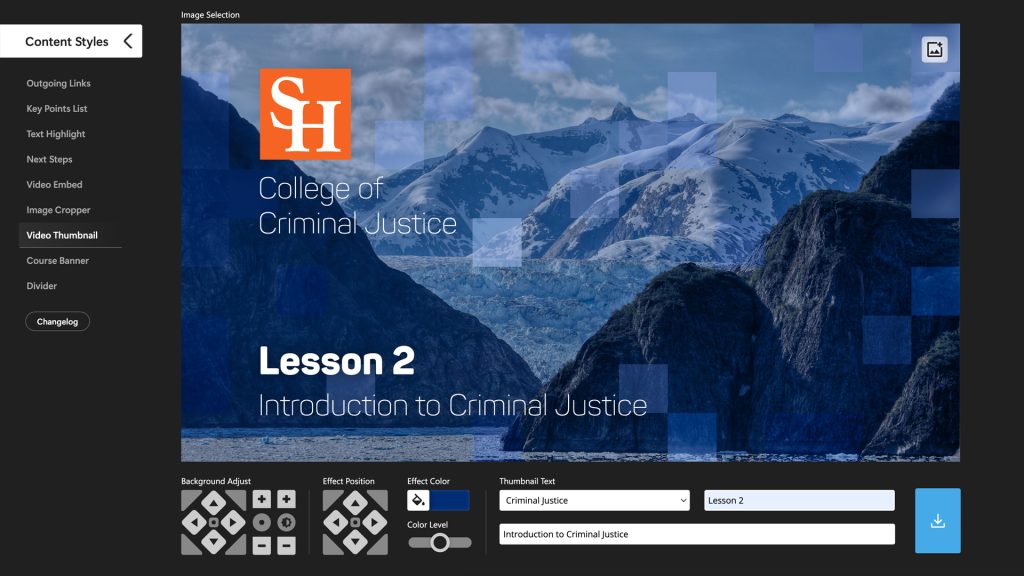
A screenshot of the video poster creation feature of the Online Course Styling Tool
A display of a video embedded in a blackboard course. The video has a poster image generated with the Online Course Styling Tool featuring a stylized pixelation effect

Design Resources

Point of Contact: Dane Classen

Creative Cloud

With Adobe Creative cloud you can:

  • Design posters, infographics, and other educational graphics
  • Edit photos and videos with professional grade tools
  • Create appealing presentations and reports

Storyblocks

SHSU Online now features a premium library of over one million royalty-free stock assets through Storyblocks, including high-quality images, video, audio, and templates. Faculty are welcome to browse the catalog to find the perfect media for their courses; simply contact your SHSU Online instructional designer to have your selected assets downloaded.

Royalty Free Resources

Royalty-free images can be used freely across websites, publications, and presentations without the need to secure individual permissions, negotiate licenses, or worry about copyright infringement.

If you are unsure whether an image or other content you intend to use in your course may potentially infringe on copyright, please refer to the following resources for guidance.


News

SHSU Online Newsletter

Point of Contact: Maxwell Giddens

The SHSU Online Newsletter keeps the university community connected to the latest in digital education. Written by our instructional designers and staff, each issue delivers practical teaching insights, Blackboard updates, emerging technology news, and faculty spotlights. Brought to life by the Media Innovation team, this quarterly publication translates technical expertise into an engaging, easy-to-explore resource designed to support your instructional success.
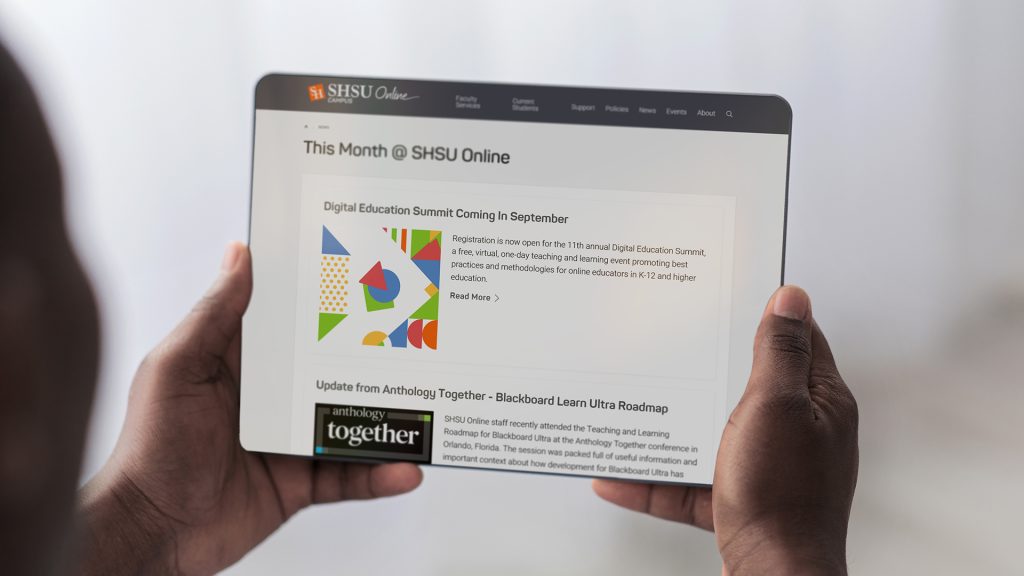
A person reading the SHSU Online newsletter on a tablet

Live Broadcast

Live Events and Streaming

Point of Contact: JT Bounds

SHSU and higher education have moved into more accessible and open discussion driven initiatives, SHSU Online has adapted to help accommodate many forms of event-based and streaming content. Here at SHSU Online, we are here to help bring ideas to life and help departments and colleges understand what they want and/or need from their events or streams. This guide will help individuals break down their ideas and try and answer questions that individuals might not know to ask, as well as give ideas about what else might be possible or needed.

We recommend that initial contact to SHSU Online occurs as soon as possible so that all the wants and needs can be met, as well as giving the team ample time to work through the planning and logistics of making an event or stream happen.
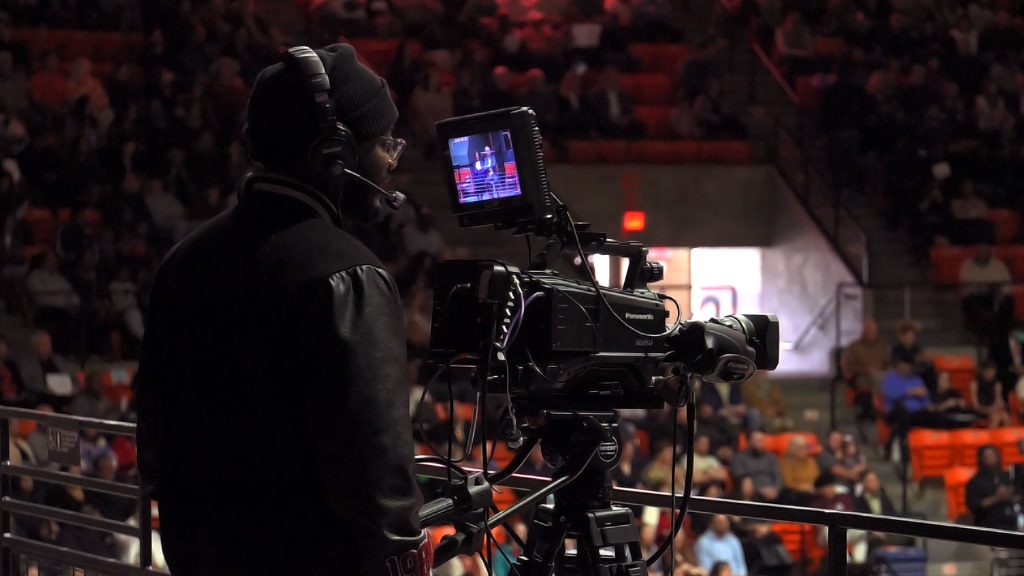
A camera operator with a headset and beanie films a crowded event from an elevated position. The professional broadcast camera is aimed at a brightly lit stage in the distance, while rows of spectators fill the dark arena seating in the background.
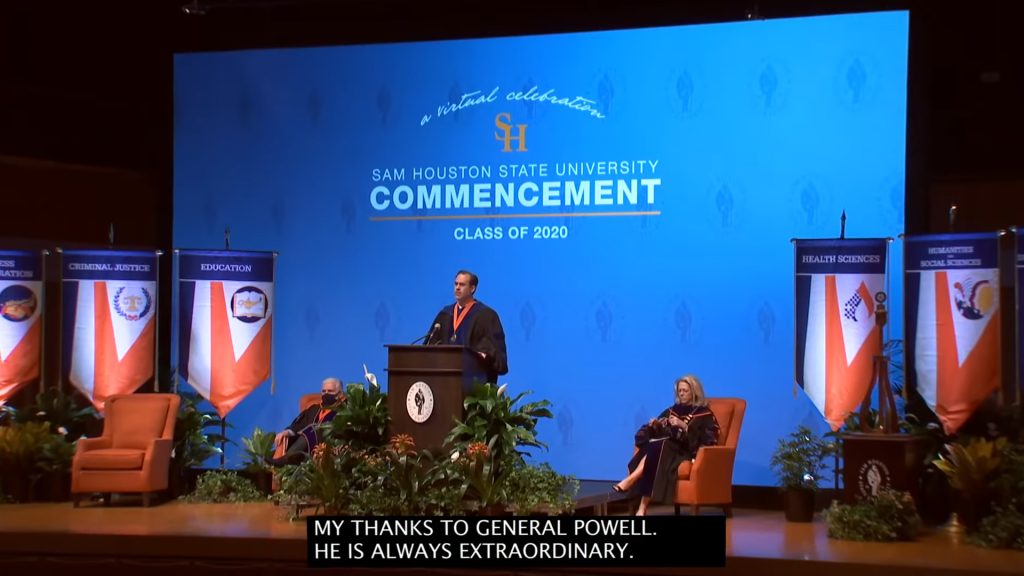
A wide shot of the Sam Houston State University Commencement ceremony. A speaker stands at a wooden podium on a stage decorated with plants and university banners, backed by a large blue screen displaying the event title.
A large, brightly lit Christmas tree stands at the center of an outdoor nighttime celebration for SHSU's Lighting of the Tree. Two vertical plumes of white smoke or steam rise on either side of the tree, illuminated by festive red and white lights.
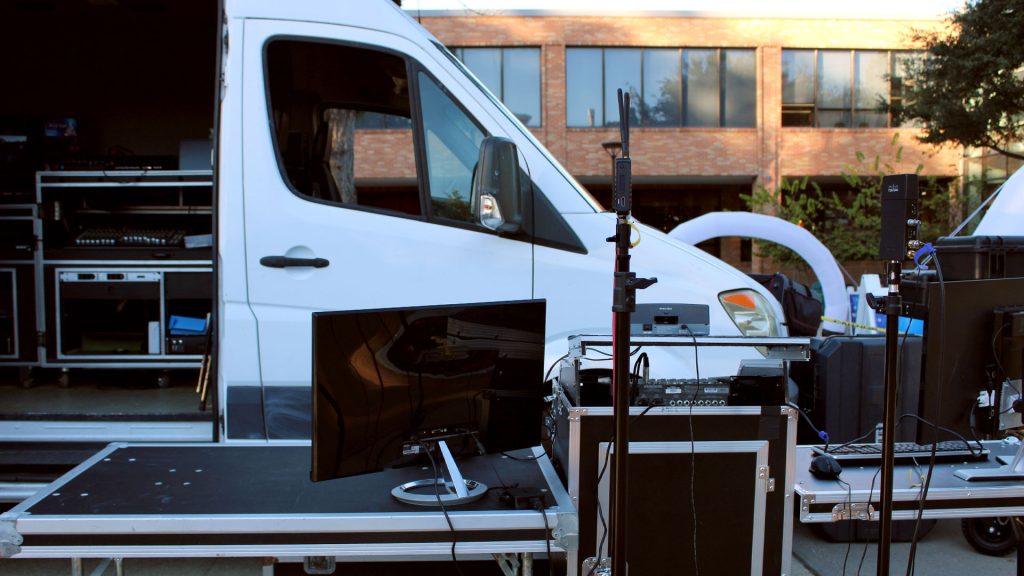
A mobile production unit is set up outdoors next to a white van. The setup includes multiple monitors, equipment racks, and wireless transmission antennas on stands, with a brick university building visible in the background.

Live Events Services we offer

Services and Timelines

Events require time for preparation and planning. We are here to help every step of the way and work with everyone to ensure that events are successful.

Initial Meeting

For events and streams, we usually have an initial meeting to discuss expectations, as well as options for the event. In this meeting, we walk through a timeline for media, setup, and staffing so that each party can properly prepare.

Major Events

  • One or more months needed for preparation

Major events include presidential events such as Graduation, Tree of Light, and Ring Ceremony, or events with large audiences such as New Student Convocation or the White Coat Ceremonies.

These types of events take longer to plan due to the larger media playback requirements and lengthier duration of the event, and they require a script. These events typically require a larger number, typically five or more of our staff, and can also take more time when it comes to planning. They involve coordination with venue managers, planning of event logistics, and the physical setup of the event, which often requires eight or more hours to complete.

Smaller-Medium Streams

  • Three weeks to one month needed for preparation

Examples of these are Open Forums, such as the Academic Policy streams, Conversations with Administrators, or Committee Searches.

These events are typically hybrid events with in-person attendees and a stream to either Blackboard or YouTube. Blackboard streams require a custom-built webpage, which takes some time to create. In addition, these streams do require some personnel (three or four) to operate the equipment and set up the event.

Virtual Zoom Streams

  • Two weeks needed for preparation

These types of events are perhaps the most user-friendly events. They do not require many people to staff the event (typically one or two), and can be managed remotely, which omits physical setup times.

When requesting events to be streamed through Blackboard, we ask for at least two weeks’ notice for planning so that we can properly schedule.

Critical info to keep in mind

Critical Information

In general, there are a few important considerations to be aware of when planning your event.

Target Audience

Is this event focused more on students, faculty, staff, or a combination of the three? If the event is geared to faculty and staff, we can utilize Blackboard to stream only to those specific audiences

Does the event involve students? If so, we may consider streaming to YouTube, so parents or guardians have a chance to see their student on the live stream.

If the event’s goal is audience or crowd engagement, the event may be better served as in-person only and not streamed encouraging more individuals to show up in person and enhancing the overall event. Livestreamed events, or events that will be posted afterward, will need cameras to function, which adds another element to the event, including more personnel.

Media Needs

Will there be a PowerPoint presentation, videos, or graphics involved in the event?

Where should the media be displayed? Certain venues have built-in screens that we can project media upon, or SHSU Online may be able to provide our own screens to project media.

Microphone Options

Who will be speaking at the event, and what will they need?

How many people will be speaking at the event, and what type of microphone will be needed?

If there is more than one speaker, we may need to discuss different types of audio setups for the event.

Location of the Event

Certain venues are better equipped with technology for livestreams or events than others, so SHSU Online may need more time to ensure the venue is prepped for a stream or event.

Event Script

Some events are lecture-based, and do not need a script, timeline, or program, and simply last however long they need to.

Other events may be on a strict timeframe and may have a script or program to follow along with to ensure the event runs exactly as desired. SHSU Online encourages those who are requesting event services to provide our team with a script or program in advance, so that we can better prepare for the event and make certain that the stream runs efficiently, and media is delivered exactly as required.


Contact

Charles Henson
Executive Director for Online Media Innovation

Video Production

Nat Conner
Director of Media and Innovation
Ben Jefferson
Video Producer

Course Media

Jessie Hobson
Media Innovation Coordinator
Jake Whitco
Video Producer

Graphic Design

Dane Classen
Associate Director
Maxwell Giddens
Senior Designer
Erica St Amanze
Graphic Design Specialist

Broadcast Events

John Bounds
Assistant Director
Vincent Lewis
Video Producer